
Worksheet help
How to print worksheets
and save a PDF
Choose A4 or US Letter in Worksheet settings, then choose the same paper size in your browser’s print dialog. Start at 100% scale and turn headers and footers off. Check the print preview before printing the full set.
One name, one page
Open the name tracing generator and enter one name per line. For example:
Oliver
Amelia
Noah
This makes three pages, in that order. Use the Preview menu to check each name. Repeated names make separate pages; blank lines are ignored. You can enter up to 30 names, with up to 32 characters in each.
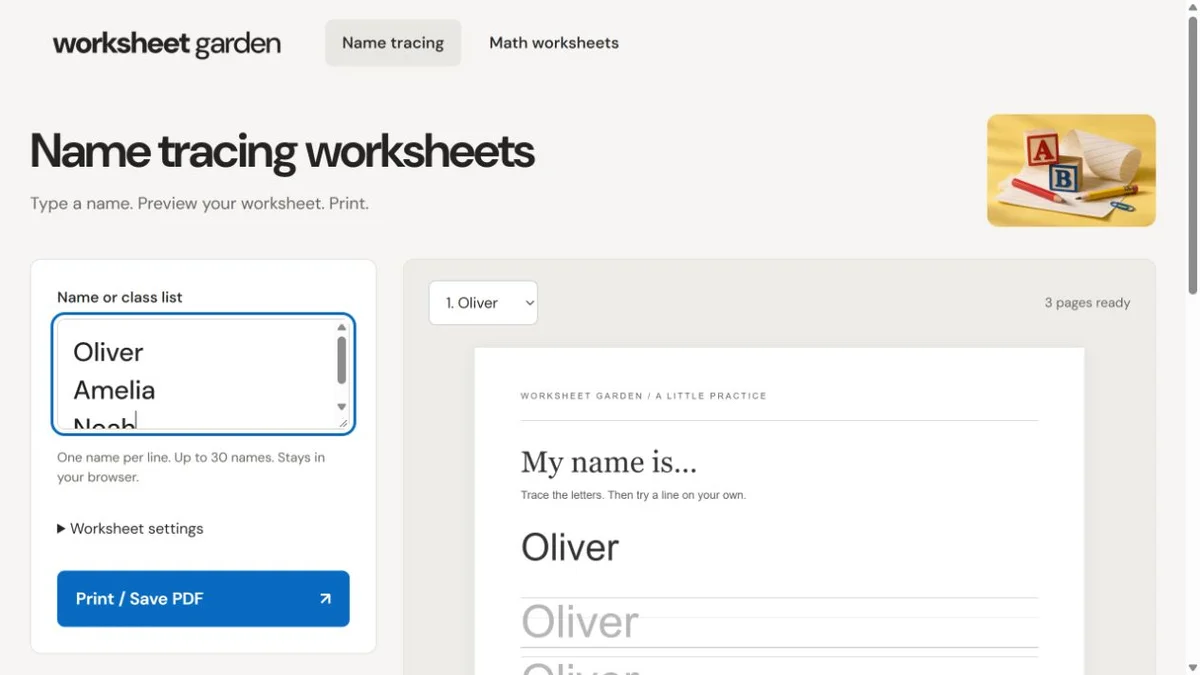
Under Worksheet settings, choose four, six or eight practice rows. Soft grey letters are for tracing over; outline letters leave the inside unfilled. Long names shrink to fit. These sheets use a standard sans-serif font, without cursive letters or stroke-order arrows.
Save the set as a PDF
- Select Print / Save PDF in the generator.
- In a desktop Chrome or Edge print dialog, choose Save as PDF as the destination. Other browsers and phones may put PDF saving in a system print or share menu.
- Match the paper size to the tool’s setting. Turn off browser headers and footers if that option is shown.
- Check the page count and all page edges in the print preview, then save.
A PDF keeps the generated pages together. It may contain children’s names, so check its contents before sharing it. The generator itself does not upload or save the names you type.
Keep math answers separate
The math worksheet generator makes two pages: questions on page 1 and matching answers on page 2. Choose page 1 in the print dialog to give learners only the questions, or save both pages for yourself.
The number limit applies to each number in a question, not the answer. With a limit of 10, addition can produce 10 + 10 = 20 and multiplication can produce 10 × 10 = 100. Subtraction results are never negative. Save both pages together before selecting New questions so the answer key stays with the right worksheet.
Print a word search with its answers
The word search maker prints the puzzle first and the answer key second. The key marks each placed word and lists its start and end coordinates as (row, column), counted from the top left. Select page 1 in the print dialog for a pupil copy. Save both pages before choosing New puzzle: a new layout needs its own answer key.
Choose blank handwriting paper
Use handwriting paper when you want empty writing lines. Dashed middle guide adds a top line, a middle guide and a baseline; Plain writing lines uses solid rules. Writing space changes the distance between the rules. Select A4 or US Letter under Paper settings, then match that size in the print dialog.
If the printout looks wrong
- The bottom or right edge is cut off
- Check both paper settings first: A4 in the tool needs A4 in the dialog and printer. If they match, try the dialog’s Fit to printable area option. Printers have different unprintable margins, so the physical result can differ from a PDF.
- There is a web address or date at the edge
- Turn off Headers and footers in the browser’s print settings.
- The tracing letters are too faint
- Try Outline letters in Worksheet settings, then print one page before using a full class set. Printer ink, toner and quality settings can affect pale grey letters.
- I only want one child’s page
- The Preview menu changes what you see on the website. To print just that page, select its page number in the browser’s print dialog.
For browser-specific printing controls, see Google Chrome’s printing instructions.